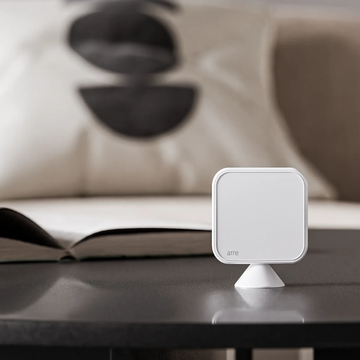
Silicone Tag
Stick it anywhere. Tap to share.
A slim silicone NFC tag for your phone, laptop, or desk. One tap opens your arre link profile — update what it shares any time, no reprint, no app.


Tap
Tap the tag.
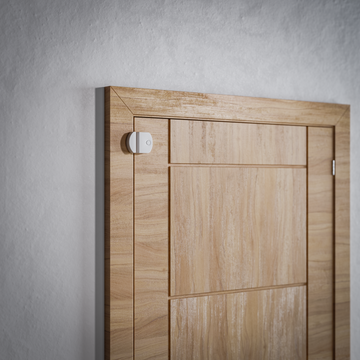
Stick it by the door and hold your phone to it — no app, nothing to install.
Scene
Run a whole scene.
Lights, shades, locks, music — one tap sets the room with an Apple Shortcut.
WiFi
Share your WiFi.
Guests tap the tag and join instantly — no password to read out.
Anywhere
Stick one anywhere.
By the door, the desk, the bed — 38 mm of silicone that does anything.

 arrehome.com
Tap to open
now
arrehome.com
Tap to open
now
One tap. Any shortcut.
Your tag opens your arre profile out of the box. Stick one on your desk, wall, or dash and—with Apple Shortcuts—a tap can also text someone, run a Home scene, start a Focus, and more.
- 1
Open Shortcuts → Automation
In the Shortcuts app, open the Automation tab and tap + → New Automation.
- 2
Choose “NFC”, then Scan
Hold the top of your iPhone to the arre tag until it’s recognized, give it a name, and tap Next.
- 3
Add your actions
Send a message, set an Apple Home scene, play a playlist, start a Focus — stack as many as you like.
- 4
Turn off “Ask Before Running”
So it fires the instant you tap. Done — tap the tag anytime to run it.
A few ideas
“Goodnight”
Lock the door, lights off, thermostat down — one Apple Home scene.
“On my way”
Text your partner automatically as you head out the door.
Deep work
Start a Focus, silence notifications, open your task list.
Dinner playlist
Kick off a playlist on the kitchen speaker with a tap.
Movie night
Dim the lights, close the shades, set the TV scene.
Drive mode
Open Maps home, start a podcast, set Driving Focus in the car.
Works on iPhone (iOS 13+, the free Shortcuts app). On Android, use apps like NFC Tools or Tasker. Your tag still opens your arre profile too — the automation just runs alongside it.